How to Get Tubi on Roku, Smart TVs & Fire Stick
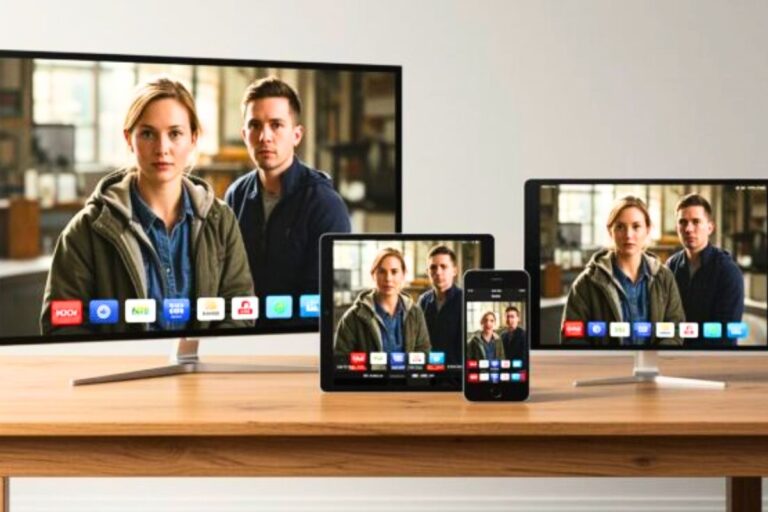
To install Tubi on your TV, open your TV or streaming device’s app store, search for Tubi, choose Install, Add App, or Add Channel, then open the app. Tubi is free and does not require a credit card, though signing in lets you save shows and continue watching later.
Quick Roku Answer: To get Tubi on Roku, press Home on your Roku remote, choose Search, type Tubi, select Tubi – Free Movies & TV, then choose Add channel. After it installs, open Tubi from your Roku home screen.
This guide walks you through the steps for Roku, Fire TV Stick, TVs, phones, and tablets.
Once Tubi is installed, you can use it to watch many free classic TV shows, movies, and live channels without cable. See my full guide to watching old TV shows for free.
Choose Your Device
Pick the device you want to use Tubi on:
Smart TV: Samsung, LG, Sony, Vizio, TCL, Hisense – best if your TV already has apps like Netflix or YouTube.
Roku Stick or Roku TV – easiest for many beginners
Amazon Fire TV Stick – good if you already use Amazon devices.
iPhone, iPad, Android phone, or tablet – fastest option if you just want to watch right away.
Older TV with HDMI – possible if your TV has HDMI or you add a streaming device.
How to Get Tubi on Roku
Use these steps if you have a Roku TV, Roku Stick, or Roku box. Tubi installs the same basic way on all Roku devices.
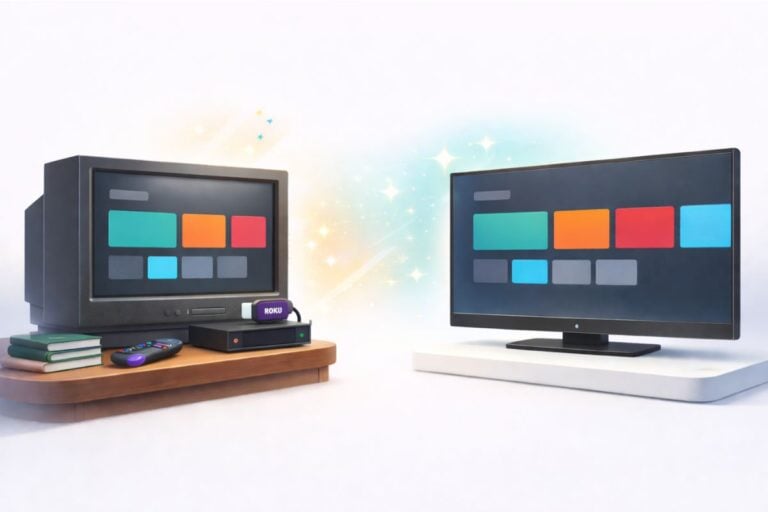
Don’t have a smart TV? No problem. A Roku Stick or Roku Box plugs into your TV and gives it smart capabilities. These devices cost around $29–$40 and work with almost any TV that has an HDMI port (the flat, narrow slot on the back or side).
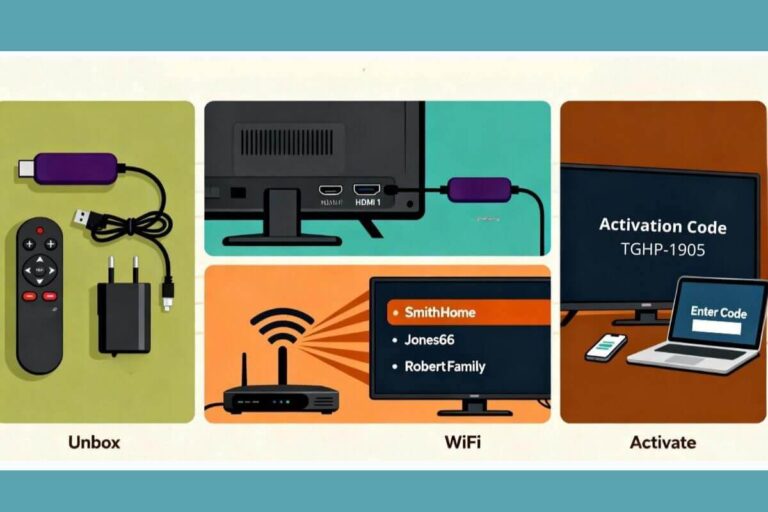
First-time Roku user? If you haven’t set up your Roku device yet, follow our complete Roku Stick Setup Guide first, then come back here.
If your Roku is already working and connected to Wi-Fi, here’s how to add Tubi:
Step 1: Go to the Roku Home Screen
- Turn on your TV.
- Your Roku should turn on automatically. If not, press any button on the Roku remote.
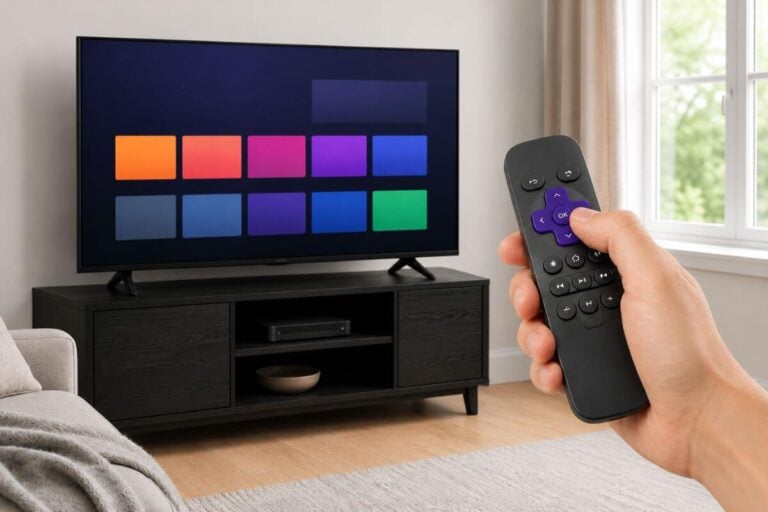
- If you see a different input (like cable), press the Input or Source button on your TV remote until you see the purple Roku home screen with tiles.
You’ll know you’re in the right place when you see boxes (tiles) like Netflix, The Roku Channel, or similar apps.
Step 2: Open the Search Menu
- On the left side of the Roku home screen, you’ll see a vertical menu: Home, What to Watch, Search, etc.
- Use the arrow buttons on your Roku remote to highlight Search.
- Press the OK button in the center of your remote.
A keyboard will appear on the screen.
Step 3: Search for Tubi and Add the Channel
- Using the arrow buttons, move around the on-screen keyboard and type: T-U-B-I.
- As you type, Roku will show search results. Look for “Tubi – Free Movies & TV”.
- Highlight it and press OK.
- You’ll see a page for Tubi with a button that says Add channel.
- Highlight Add channel and press OK.
- Wait a moment while Roku installs the app.
- When it’s done, the button will change to Go to channel.
- Press OK to open Tubi for the first time.
Congratulations — Tubi is now installed on your Roku!
Step 4: Pin Tubi to the Front of Your Home Screen (So It’s Easy to Find)
By default, new apps get added to the end of your channel list. Here’s how to move Tubi up front so you can find it quickly:
- Press the Home button on your Roku remote.
- Use the arrows to move to the Tubi tile.
- Press the ✱ (star) button on your remote.
- Choose Move channel.
- Use the arrows to drag Tubi near the top of your list.
- Press OK to drop it in place.
Now, every time you want to watch Tubi, you just:
- Press Home
- Move to Tubi
- Press OK
How to Install Tubi on a Smart TV, Fire Stick, Phone/Tablet or Old TV
Install Tubi on a Smart TV (Samsung, LG, Sony, Vizio)
If your TV was made in the last 10 years, there’s a good chance it’s a “Smart TV” — meaning it connects to the internet and has built-in apps.
How to Know If You Have a Smart TV
Here’s how to check quickly:
- Look for apps on your TV’s home screen. If you see colorful icons like Netflix or YouTube when you turn on the TV, you have a Smart TV.
- Check your remote. Look for buttons labeled Home, Smart, or Apps. If you have one of those, your TV is smart.
If you don’t see any apps and your remote only has channel numbers, skip ahead to Method 2 (streaming devices).
Step 1: Make Sure Your Smart TV Is Connected to Wi-Fi
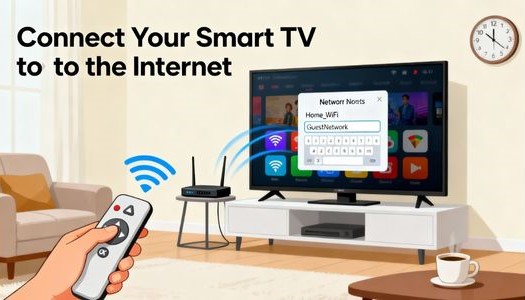
Before you can install Tubi, your TV needs to be online:
- Grab your TV’s own remote (not your cable remote).
- Press Menu or Settings (often a gear icon).
- Go to Network → Wi-Fi Settings.
- Select your home Wi-Fi network from the list.
- Enter your Wi-Fi password and connect.
Once connected, try opening Netflix or YouTube to confirm you’re online. If those work, you’re ready for the next step.
Step 2: Find the App Store on Your TV
Every smart TV brand calls their app store something different:
| TV Brand | What to Look For |
|---|---|
| Samsung | Samsung Apps or Smart Hub |
| LG | LG Content Store |
| Sony | Google Play Store (on Google TV models) |
| Vizio | SmartCast or V button on remote |
| TCL/Hisense | Roku Home or Google TV |
Press the Home button on your TV remote, then look for “Apps,” “Store,” or “Add Channels.”
Step 3: Search for Tubi and Install It
- Navigate to the App Store or Apps section.
- Select Search (usually a magnifying glass icon).
- Using your remote, type T-U-B-I on the on-screen keyboard.
- Select Tubi – Free Movies & TV from the results.
- Click Install, Add App, or Download.
- Wait a moment while the app installs.
- Once complete, select Open to launch Tubi.
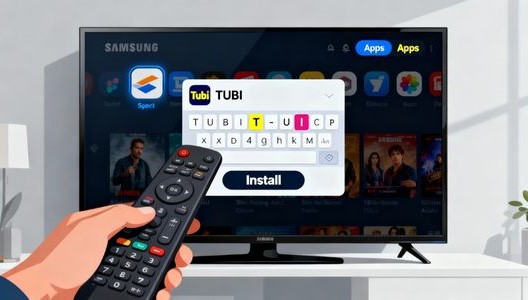
That’s it — you’re ready to stream for free.
Can’t find the App Store? On some TVs, you need to scroll down past your existing apps to find a button like “Get More Apps” or “Go to Play Store.” Look for it at the bottom of your app row.
Install Tubi on an Amazon Fire TV Stick
The Amazon Fire TV Stick works similarly to a Roku — it plugs into your TV’s HDMI port and lets you stream apps.

Haven’t set up your Fire Stick yet? Make sure it’s plugged in, powered on, and connected to your Wi-Fi before continuing. Check out our simple walkthrough for setting up your FIre stick.
Step 1: Go to the Fire TV Home Screen
- Turn on your TV and switch to the HDMI input where your Fire Stick is connected.
- You should see the Fire TV home screen with rows of apps and content.
Step 2: Search for Tubi
- On the Fire TV home screen, navigate to the Search icon (magnifying glass) at the top left.
- Type T-U-B-I using the on-screen keyboard, or press and hold the microphone button on your remote and say “Tubi.”
- Select Tubi – Free Movies & TV from the results.
Step 3: Download and Open Tubi
- On the Tubi app page, click Get or Download.
- Wait for the installation to complete.
- Click Open to launch Tubi.
The familiar orange-and-red Tubi logo will appear, and you’re ready to start watching.
If your Firestick remote will not move around the Tubi screen, reset the Firestick remote first, then try opening Tubi again.
Install Tubi on a Tablet or Smartphone
You don’t need a TV at all to enjoy free classic shows. Watching on a phone or tablet is the simplest option — you just download the app.
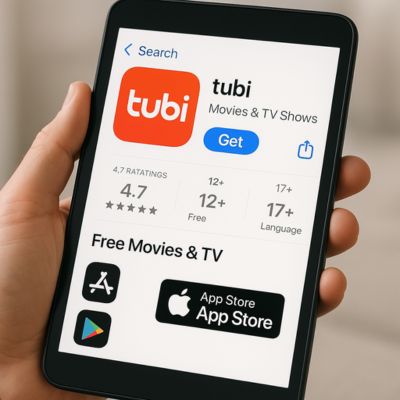
On an Android Phone or Tablet:
- Open the Google Play Store (the colorful triangle icon).
- Tap the search bar and type Tubi.
- Select Tubi – Free Movies & TV.
- Tap Install.
- Once installed, tap Open.
On an iPhone or iPad:
- Open the App Store (the blue icon with a white “A”).
- Tap Search at the bottom.
- Type Tubi and tap Search.
- Select Tubi – Free Movies & TV.
- Tap Get (you may need to confirm with Face ID or your password).
- Once installed, tap Open.
No login needed — you can start browsing immediately.
Method 5: Install Tubi on an Old TV
If your older TV has an HDMI port, you can use Tubi by plugging in a Roku Stick, Fire TV Stick, or similar streaming device. If your TV is not smart, my guide to streaming on a non-smart TV explains the easiest ways to add apps like Tubi, YouTube, and Pluto TV.
What Is Tubi (And Why It’s Perfect for Classic TV Fans)
Tubi is like flipping back to the golden days of television — but with the convenience of streaming. It’s 100% free and loaded with thousands of shows, movies, and channels, including a ton of nostalgic favorites from the 1950s through the 1970s.
Here’s what makes Tubi so appealing:
- Over 50,000 movies and TV shows — including vintage hits and cult classics
- Totally free — no subscription, no credit card, no contract
- Works on nearly every device — smart TVs, Roku, Firestick, phones, tablets, and computers
- Supported by short ads — just like traditional TV, but you control what you watch
- Offers both live TV channels and on-demand viewing
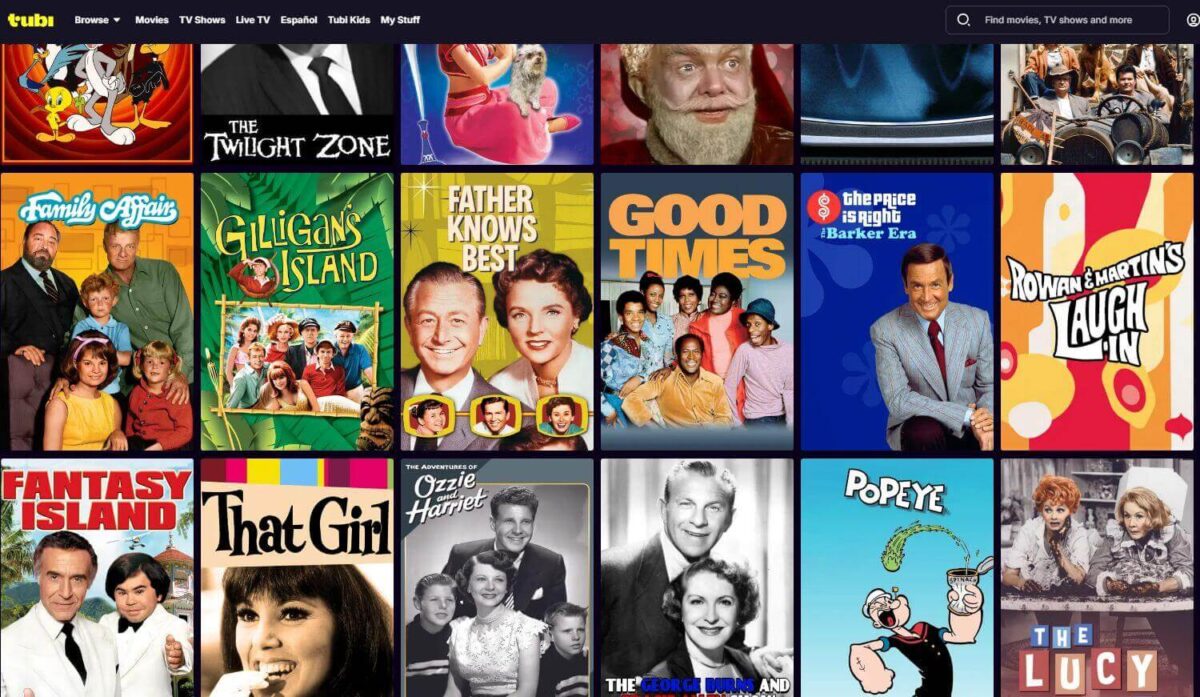
When you open Tubi, you’ll find categories like Classic TV, Comedy, Westerns, Family Favorites, and Drama. It feels a lot like old-fashioned channel surfing — except now, it’s all on your schedule.
Setting Up Your Tubi Experience
Now that Tubi is installed, here’s how to get the most out of it.
Watch Without an Account (Fastest Option)
When you first open Tubi, you can:
- Look for Browse as Guest or simply start scrolling through shows.
- You can watch anything immediately — no sign-up required.
The downside: Tubi won’t remember what you watched or save your favorites.
Create a Free Tubi Account (Recommended)
Having a free account lets you:
- Save shows to “My List” so you can find them later
- Resume watching where you left off
- Get better recommendations based on what you like
To create an account:
- On Tubi’s main screen, look for Sign In or Register.
- Tubi will show you an activation code and a website address (usually tubi.tv/activate).
- On your phone, tablet, or computer, visit that website.
- Enter the code shown on your TV screen.
- Create a free account with your email and a password — or log in if you already have one.
After a moment, your TV screen will update, and you’ll be signed in on all your devices.
How to Find Classic TV Shows on Tubi
Getting Tubi installed is only half the fun. Here’s how to find the vintage shows you love.
Search for Specific Shows
From the Tubi home screen:
- Navigate to Search (usually at the top or on the left).
- Type the name of a show you’re looking for.
Try searching for titles like:
- “The Andy Griffith Show”
- “Bonanza”
- “The Dick Van Dyke Show”
- “The Beverly Hillbillies”
- “Gunsmoke”
- “The Twilight Zone”
Not every show is available all the time (streaming rights change), but Tubi usually has hundreds of options from the 1950s, 60s, and 70s.
Browse by Category
Instead of searching, you can browse:
- Scroll down on Tubi’s home screen.
- Look for categories like “Nostalgia TV”, “Classic TV & Movies”, or “Westerns”.
- Move left and right through the row to see all the shows.
- When you see something interesting, highlight it and press OK.
This is a great way to rediscover shows you might have forgotten — old westerns, early sitcoms, or vintage sci-fi.
Save Shows to “My List”
To save a show for later:
- Highlight the show you want to save.
- On its information page, look for Add to My List or a “+” icon.
- Press OK.
Later, go to My List inside Tubi to quickly find everything you’ve saved.
Making Tubi Easier to Use (Simple Tweaks)
Turn On Subtitles / Closed Captions
If you like reading the words on the screen:
- While a show is playing, press the ✱ (star) button on your Roku remote (or the menu button on Fire Stick).
- Look for Closed captions or Subtitles.
- Choose On always.
- Press OK.
Your shows will now display text at the bottom of the screen.
Slow Down and Avoid “Wrong Clicks”
A few tips for easier navigation:
- Press buttons once, then wait a second for the screen to respond.
- If you get lost, press the Home button to go back to the main menu.
- Keep a small note by the TV: “Home → Tubi → OK” as a reminder.
Troubleshooting Common Tubi Problems
Even when you do everything right, sometimes technology acts up. Here are simple fixes.
Tubi Won’t Open or Keeps Closing
Try these steps in order:
- Restart Tubi: Press Home, go back to the Tubi tile, and open it again.
- Restart your device:
- Roku: Go to Settings → System → System restart → Restart
- Fire Stick: Go to Settings → My Fire TV → Restart
- Remove and re-add Tubi:
- Highlight the Tubi tile
- Press the ✱ button (Roku) or hold Select (Fire Stick)
- Choose Remove and confirm
- Then search for Tubi and reinstall it
Picture Freezes or Keeps Buffering
This is usually an internet issue:
- Move your streaming device closer to your Wi-Fi router if possible.
- If others in the house are streaming or downloading, ask them to pause temporarily.
- Unplug your router, wait 30 seconds, then plug it back in.
- On Roku: Go to Settings → Network → Check connection to test your Wi-Fi.
The Picture Looks Grainy or Blurry
Don’t worry — that’s not a glitch. Many classic shows on Tubi were filmed decades ago, long before HD existed. A bit of grain or fuzziness is completely normal and part of the vintage charm.
No Sound
Double-check that the volume is turned up on both your TV and your streaming device remote. Some setups have separate volume controls, and it’s easy to miss one.
Remote Not Responding
- Roku Box: Make sure nothing is blocking the front of the device — it needs a clear line of sight from the remote.
- Roku Stick / Fire Stick: Try replacing the batteries or re-pairing the remote through Settings.
Frequently Asked Questions
Is Tubi really free?
Yes. Tubi is 100% free. You don’t need a subscription, credit card, or contract. It’s supported by short commercials — similar to traditional TV, but you choose what to watch.
Will I find TV shows from the 60s and 70s?
Yes. Tubi regularly includes classic shows in categories like “Nostalgia TV” such as All in the Family, The Jeffersons, and “Classic TV & Movies” such as Bullit and The Pink Panther. The library changes over time, but there are usually hundreds of vintage options available.
Do I need to create an account?
No. You can start watching immediately without signing up. However, a free account lets you save favorites, resume where you left off, and get personalized recommendations.
Can I use Tubi on an older TV?
Most likely, yes. If your TV has an HDMI port (the flat, narrow slot on the back), you can plug in a Roku Stick or Fire Stick to access Tubi. For very old TVs without HDMI, you may need an HDMI-to-RCA adapter.
Can I download shows to watch offline?
Not currently. Tubi is streaming-only, so you’ll need an internet connection to watch. Offline downloads are not available.
What if I press the wrong button and get lost?
Just press the Home button on your remote. That brings you back to the main menu, where you can navigate to Tubi and start again.
What to Watch First on Tubi
Here are some timeless classics available on Tubi to get you started:
- The Andy Griffith Show — Heartwarming small-town stories from Mayberry
- The Dick Van Dyke Show — Smart, slapstick comedy from one of TV’s most charming couples
- Bonanza — A classic Western saga about family and justice on the Ponderosa Ranch
- The Beverly Hillbillies — Country folk strike oil and hilariously navigate high society
- The Twilight Zone — Iconic sci-fi tales with mind-bending twists
- Gunsmoke — Gritty frontier justice with Marshal Matt Dillon
Many of these stream 24/7 on Tubi’s live channels — so you can drop in anytime, just like old-school TV.
Want Even More Classic TV?
If you enjoy Tubi, here are other free options worth exploring:
- Pluto TV — Works like traditional television with 24/7 live channels playing classic shows on a schedule. If it starts acting up, here are simple fixes for Pluto TV freezing or not loading.
- Best Classic TV on YouTube — Thousands of vintage favorites uploaded by studios, completely free.
- The Internet Archive — A nonprofit library where you can stream or download shows from the 1950s and 60s, completely ad-free.
Wrap Up
If you only want the fastest path, use Roku or Fire Stick, search for Tubi, install the app, and start watching without creating an account. For beginners, the hardest part is simply finding the app store — not using Tubi itself.
Sources & Verification
Tubi is a 100% legal, free streaming service. It’s owned by FOX Corporation and supported by short commercials — just like traditional television. No subscription, no credit card, no catch.
???? Tubi – Official Press & Company News
Official corporate news confirming Tubi is owned by FOX and serves over 97 million monthly users.
???? Tubi – Wikipedia
Background on Tubi’s history, FOX acquisition, and how the free ad-supported model works.
???? Tubi – Official Website
Start watching free movies and classic TV shows right now — no sign-up required.