How to Install Pluto TV on Any Device: TV, Roku & Fire Stick

Installing Pluto TV is simple once you know which device you are using. You can add the Pluto TV app to most smart TVs, Roku devices, Fire TV Sticks, phones, and tablets.
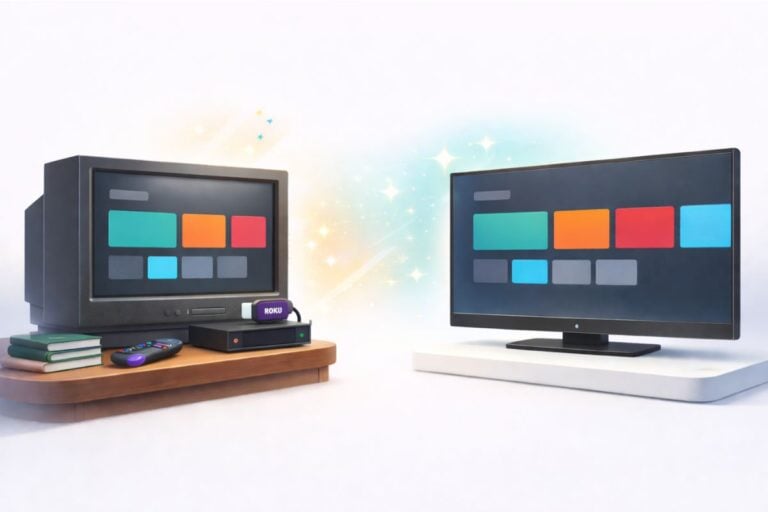
If you have an older TV without apps, you can still watch Pluto TV by connecting a streaming device such as a Roku or Fire TV Stick.
This guide walks you through each setup step, including how to check whether you have a smart TV, connect to Wi-Fi, install the Pluto TV app, and start watching.
Wondering whether Pluto TV costs anything? See my guide to Pluto TV costs, ads, and subscriptions.
What Is Pluto TV?
Pluto TV is a free streaming service with live channels and on-demand shows and movies. It works on smart TVs, Roku, Fire TV, phones, tablets, and other streaming devices.
It works a lot like regular TV: you can browse live channels that are already playing, or choose some shows and movies from the on-demand section.
How to Install Pluto TV on a Smart TV
Step 1: Determine Whether You Have a Smart TV
A Smart TV can connect to the internet and has apps (like Netflix, YouTube, Hulu, or Pluto TV).
Check these simple clues:
First Clue — Do you see apps on your TV screen?
When you turn on the TV, do you see colorful squares or icons for streaming apps?
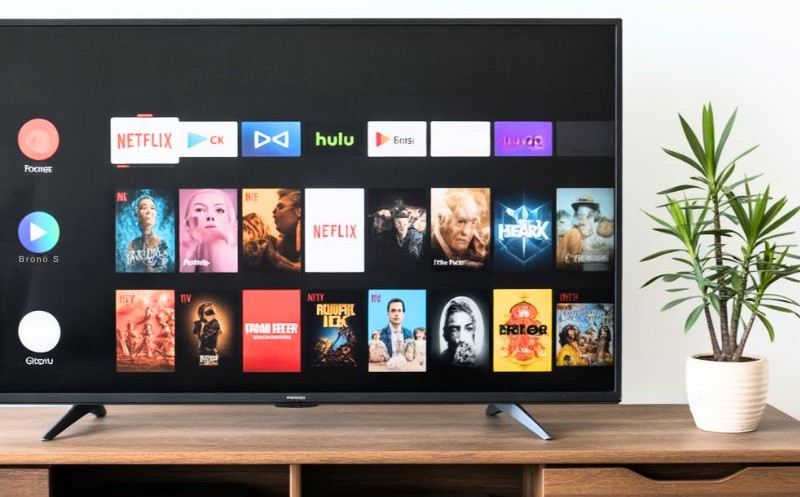
If you see Netflix or YouTube → You have a Smart TV
Second Clue — Does your remote have a Home or Apps button?
Look for buttons labeled:
- Home
- Smart
- Apps
- A symbol that looks like a house
If yes → Smart TV
If you already use those apps on this TV (for example, if you’re already watching Netflix), then you’re good to go. That means you can add the Pluto TV app right away.
Step 2: Make Sure Your Smart TV Connected to Wi-Fi
Before adding Pluto TV, make sure your Smart TV is online. Try opening Netflix or YouTube (using your TV remote, not a cable remote). If videos play, you’re online and ready to go. If not, you’ll need to connect your TV to your Wi-Fi network:
- Grab your TV’s remote (the one with your TV brand on it).
- Press “Menu” or “Settings.”
- Go to “Network” or “Wi-Fi” settings.
- Select your home Wi-Fi network.
- Enter your Wi-Fi password (using the on-screen keyboard).
- Press “Connect.” Wait until you see a checkmark or the word “Connected.”
Now go back to your TV’s home screen.
Keen Tip: You may need to use the TV’s own remote (not the cable remote) for these steps.
Once connected, it’s time to install the Pluto TV app.
Step 3: Install Pluto TV (Smart TV Method)
If you have a smart TV with an app store, installing Pluto TV is simple:
- Press the Home button on your TV remote.
- Go to the Apps or App Store section of your TV.
- Search for “Pluto TV.”
- Select and install Pluto TV (it’s free).
- Open Pluto TV from your Apps list.
- Start browsing channels—just click any show to watch it.
If you can’t find the Apps section, make sure your TV is in Home or Smart mode (sometimes a “Home” button on the remote will switch modes). Older smart TVs sometimes hide the app store until you go Home.
Once the app is installed, you can skip the device setup below. If your Smart TV menus feel slow or confusing, a Roku stick often makes Pluto easier to search and use day-to-day. Enjoy your free TV!
How to Watch Pluto on an Older TV
If you have an older TV, you can still watch Pluto TV, but you’ll need a small extra device (often called a streaming stick or streaming box) that plugs into your TV’s HDMI port. These devices are very affordable (often under $30) and make any TV “smart.” Some common options are:
- Roku Box (a small square box that sits near your TV)
- Roku Stick (a USB-stick-sized device that plugs into the HDMI port)
- Amazon Fire TV Stick (similar to Roku Stick, but made by Amazon)
- Google Chromecast (for streaming from your phone or tablet to the TV)

Look on the back or side of your TV for one or more flat slots labeled “HDMI.” That’s where a streaming device will plug in. The steps below will help you set up a Roku or Fire Stick.
Step 1: Set Up a Streaming Device (Non-Smart TV Method)
If your TV isn’t smart, follow these steps to use a streaming device. We’ll use Roku as the example.
Using a Roku Box
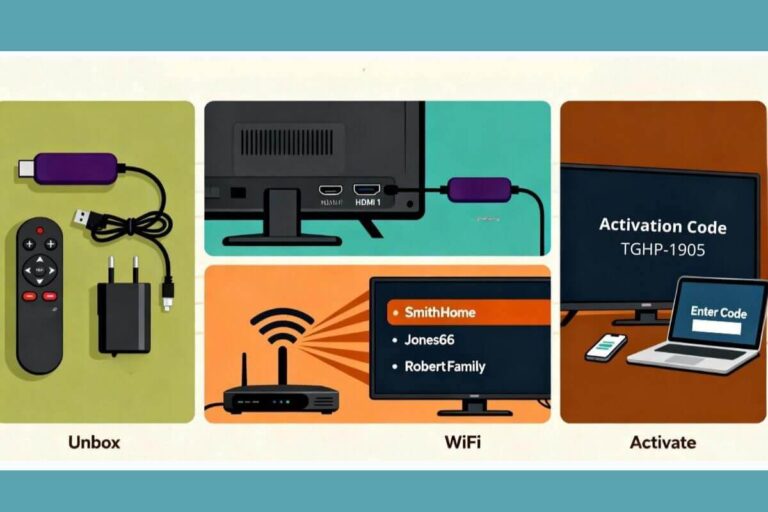
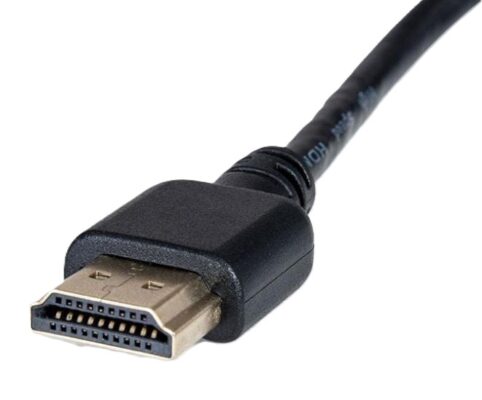
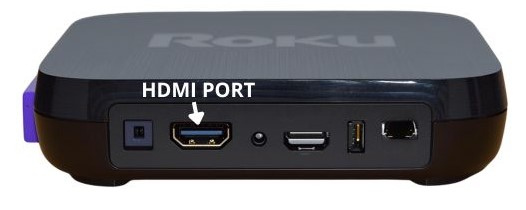
A Roku Box is a small square unit that connects to your TV. It comes with an HDMI cable, a power cable, and its own remote. The HDMI cable is 3 to 6 feet long and has the pins you see below, on both ends of the cord, one plugs into the back of the TV and the other into the Roku box.
Tip: If your Roku remote seems unresponsive, try fresh batteries and move closer to the TV. Some remotes require a clear path, while others work without pointing.
Plug in the Roku Box:
- HDMI cable: Connect one end of the HDMI cable to the back of the Roku box (there’s a port labeled “HDMI”) and the other end to an HDMI slot on your TV (for example, “HDMI 1”).
- Power: Plug the Roku’s power adapter into the Roku box and into a wall outlet.
- Turn on your TV.
- Switch TV to the Roku input: On your TV’s remote, press “Input” or “Source.” A list will pop up (HDMI 1, HDMI 2, etc.). Select the number where you plugged in the Roku Box (e.g., HDMI 1).
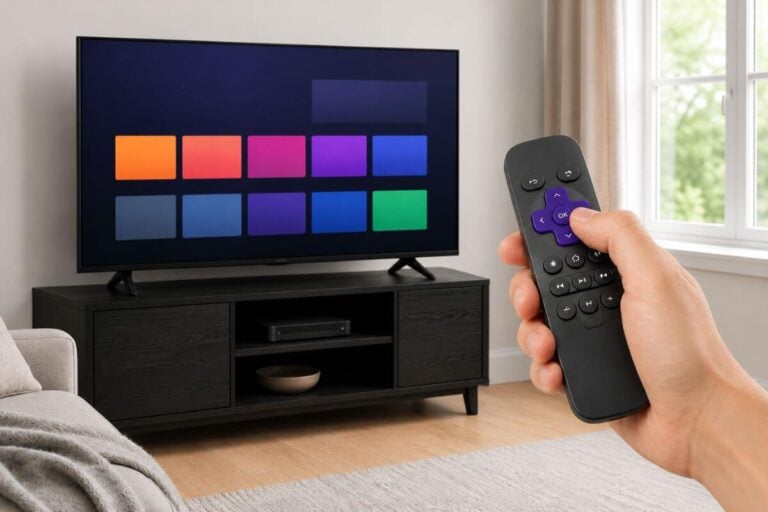
- Roku setup: You should see the Roku welcome screen. Use the Roku remote (it usually has purple buttons) to:
- Choose your language and press OK.
- Connect to Wi-Fi: It will show available networks. Select your home Wi-Fi, press OK, then type your Wi-Fi password using the arrow buttons and the on-screen keyboard. Choose “Connect.” Wait for the checkmark.
- Let Roku update: The Roku may download an update. Just let it restart if it does.
- Install Pluto TV on Roku:
- From the Roku Home screen, go to “Streaming Channels” (this is Roku’s app store).
- Select “Search Channels” (or the search icon) and type “Pluto TV.”
- When you see Pluto TV, select it and choose “Add Channel.” It will download.
- Once done, select “Go to Channel.”
Now Roku will launch Pluto TV, and you can start watching.
Using a Roku Stick or Fire TV Stick
If you’re choosing between the two most common options, this Roku vs Firestick guide makes the decision simple.
No separate HDMI cable is needed for the stick itself, but you will use the USB power cable:
- Plug in the Stick: Plug the Roku or Fire Stick directly into an HDMI port on your TV (for example, HDMI 2).
- Power the Stick: Connect the USB power cable (micro-USB or USB-C) from the stick to the included power adapter, then plug the adapter into a wall outlet.
- Turn on your TV and use the TV remote to set the input/source to that HDMI port.
- Setup: You’ll see the Roku or Fire TV welcome screen.
- On the Roku Stick, use its remote to choose language and connect to Wi-Fi (same as above).
- On the Fire Stick, the process is similar (it will ask for language and Wi-Fi).
- Install Pluto TV:
- Roku Stick: From the Home screen, go to Streaming Channels > Search Channels, type “Pluto TV,” then add the channel and open it.
- Fire Stick: From the Home screen, go to Search (magnifying glass icon), type “Pluto TV,” select the app, then click Get or Download, then open it.
That’s it—you’ll have Pluto TV on your TV.
Remember: A Roku Stick or Fire Stick plugs into an HDMI port for video, but it still needs power. You’ll connect the included USB power cable to the stick and plug the other end into a wall outlet — just like you would charge a phone.

How to Install Pluto TV on a Phone or Tablet
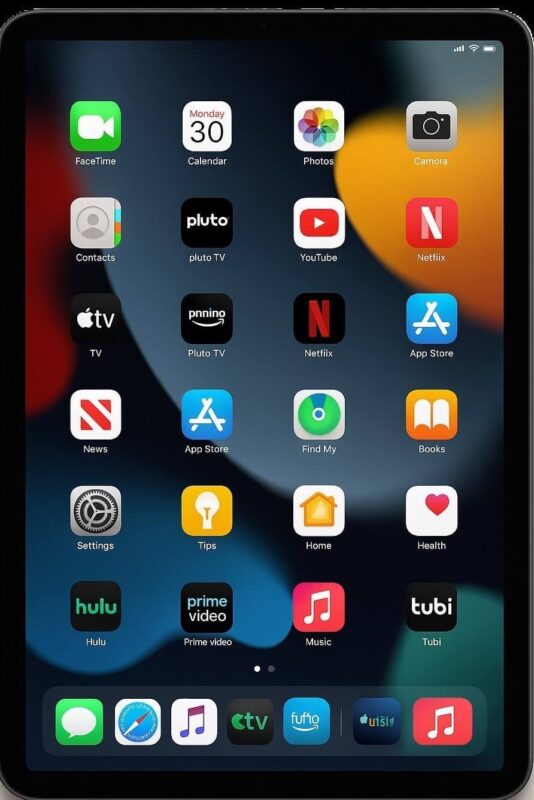
You don’t need a TV to enjoy Pluto TV.
The steps for installing and using Pluto TV on a tablet are the same as on a smartphone. You just need to:
- Open the App Store (Google Play Store for Android, App Store for iOS)
- Search for “Pluto TV”
- Download and install the app
- Open Pluto TV and start watching
The app interface and features are nearly identical on both tablets and phones: No account required, free access, and easy navigation. The only difference is the screen size—tablets may display more content side-by-side or larger menus, but all the main buttons and setup steps are the same.
If you’d rather play Pluto from your phone onto the big screen, this casting guide shows the simplest method on Roku, Fire Stick, and Smart TVs.
Quick Tips & Troubleshooting
- No sound? Make sure the volume is turned up on both your TV and your streaming device’s remote (e.g., Roku or Fire Stick remote). If voices still sound muffled after basic volume checks, these free TV audio settings usually make dialogue clearer in minutes.
- App keeps freezing or buffering? Try moving closer to your Wi-Fi router, or turn the TV/device off and on again.
- Can’t find a search feature? Look for a magnifying glass icon or a search box in the menu.
- Picture is a bit blurry? Many classic shows are over 60 years old, so video quality might look grainy. That’s normal for vintage TV.
Just getting started with free streaming?
Don’t miss our complete beginner’s guide — Watch Old TV Shows for Free Starting Tonight! — it walks you step-by-step through every option, from setup to finding your favorite TV shows from the 60s and ’70s.
Frequently Asked Questions
Do I need an account?
No account or login is needed. Just install the app and start watching.
Why can’t I find Pluto TV in my TV’s app store?
Your TV may not support the Pluto TV app, or its software may be out of date. First, update your TV software and search the app store again. If Pluto TV still does not appear, you can usually watch it by connecting a Roku, Fire TV Stick, or another supported streaming device. Pluto officially supports Roku and Amazon Fire TV devices.
Will Pluto TV work on my old TV?
Sometimes.
If your TV has an HDMI port: Yes — add a Roku, Fire Stick, or Chromecast.
If your TV only has AV (red/white/yellow) or coax: Not directly. You’ll need either:
an HDMI-to-AV adapter (for red/white/yellow inputs), or
a different TV (often the simplest option).
Quick tip: If the back of your TV has an input labeled HDMI, you’re good. If it only has coax/AV, you’ll need an adapter.
What should I do if Pluto TV won’t connect to Wi-Fi?
First, make sure your TV or streaming device is connected to your home Wi-Fi. Try opening another app, such as YouTube, to test the connection. If that works but Pluto TV does not, restart the device and router, then check for updates to the Pluto TV app and your device software. Pluto recommends keeping the app and device software current.
Can I install Pluto TV on Roku or Fire TV?
Yes. Pluto TV supports Roku devices and Amazon Fire TV, including Fire TV Sticks. Search for Pluto TV in the Roku Channel Store or Amazon app store, install the app, and open it to start watching.
Wrap Up
You can install Pluto TV directly on most smart TVs, Roku devices, Fire TV Sticks, phones, and tablets. If your TV does not have apps, connect a Roku, Fire TV Stick, or another streaming device to an HDMI port.
For more free ways to find and watch old shows, see my Start Watching Classic TV guide.
Sources & Verification
Pluto TV is a legitimate free streaming app owned by Paramount and supported by ads—no subscription needed.
Pluto TV – Official Terms of Use
Legal terms confirming Pluto TV is a licensed, ad-supported streaming service operated by Paramount.
Pluto TV – Wikipedia
Background on Pluto TV’s history, ownership by Paramount, and how the free ad-supported model works.
Pluto TV – Official Website
Start watching free live TV and on-demand classic shows right now.